- DeskOrbie, plugged in near you
- A phone with Bluetooth
- Your Wi-Fi name and password
DeskOrbie 2 User Guide
Set up as easy as 1,2,3!
DeskOrbie for iOS
Download on the App StoreDeskOrbie for Android
Get it on Google PlaySet up
Set up in four steps
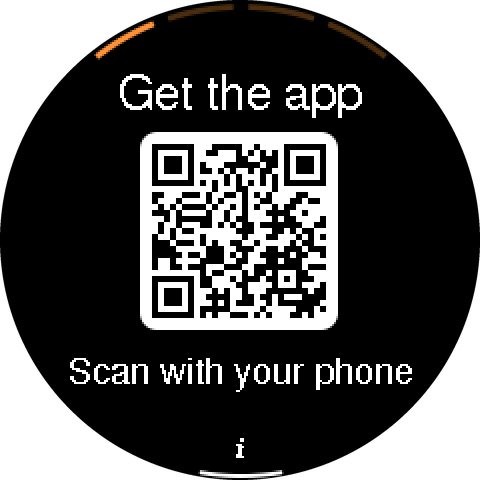
Plug it in
Plug in DeskOrbie. When it shows a QR code, it's ready to set up.

Get the app
Scan the QR code, or download DeskOrbie from the App Store or Google Play. Tap Set up my DeskOrbie and allow Bluetooth.
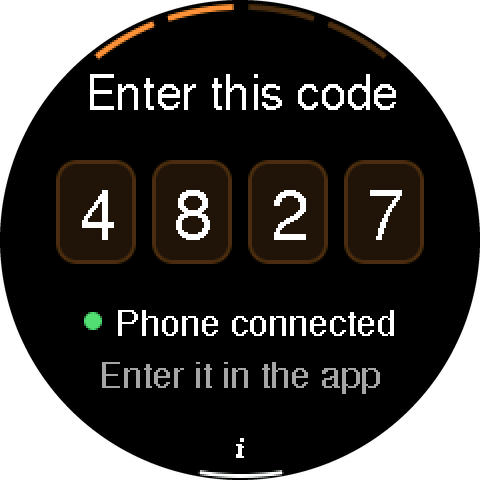
Enter the code
Pick your DeskOrbie in the app, then type the 4-digit code shown on its screen.
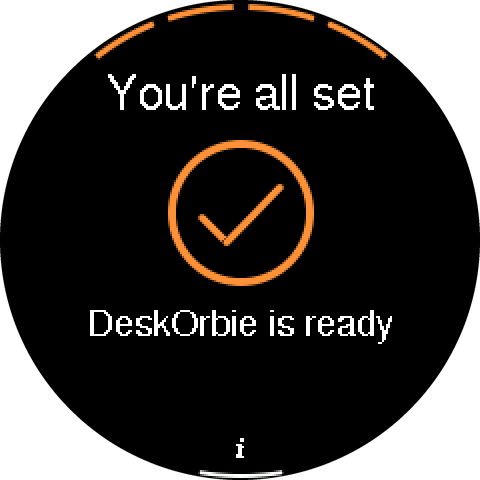
Connect to Wi-Fi
Choose your Wi-Fi and enter the password. DeskOrbie works with 2.4 GHz Wi-Fi. Keep the app open until DeskOrbie says You're all set.
Stuck on a setup screen? Press any button on DeskOrbie for tips.
Buttons
Three buttons
The small icons along the bottom of the screen show what each button does.
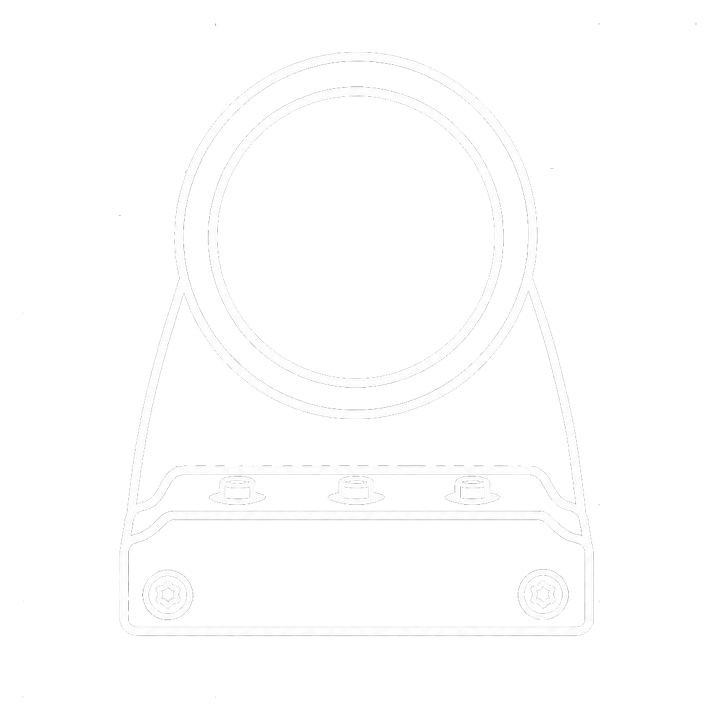
- ▶ RIGHT Next screen, or yes ✓
- ● MIDDLE The main action on this screen
- ◀ LEFT A shortcut, or no ✕
Screens
What's on the screen
Press ▶ RIGHT to move between screens.
Clock
The time and date. Choose a clock face and colors in the app.
Focus Timer
● MIDDLE picks a length. ◀ LEFT starts and pauses.
Calendar
Your upcoming events. Add your calendar in the app.
Weather
Press ◀ LEFT on the Clock to see today's weather.
Reminders
DeskOrbie reminds you before calendar events and nudges you to take short breaks during the day. Use the buttons shown under each card to snooze or dismiss it.
Set them up in the app under Applets.
Night Mode
Choose your night hours in the app, then have DeskOrbie dim, turn red, or turn off at night. Press any button to wake the screen.
App
The DeskOrbie app
Keep your phone near DeskOrbie when you change something.
Studio: clock face, colors, brightness and Night Mode.
Applets: your time zone, calendar, weather location and reminders. Need help with your calendar link? Add your calendar.
Settings (gear icon): Wi-Fi, software updates, help and reset.
New phone? Add DeskOrbie in the app, then press ▶ RIGHT on DeskOrbie to approve it.
Updates: DeskOrbie keeps itself up to date. If you see an update screen, leave it plugged in until it restarts.
Help
Quick fixes
DeskOrbie says "No Wi-Fi"
Open the app and tap Reconnect Wi-Fi.
Wi-Fi won't connect
Check the password, and make sure you picked a 2.4 GHz network.
The app can't find DeskOrbie
Keep DeskOrbie plugged in and close to your phone with Bluetooth on, then scan again.
The code didn't work
Enter the code showing on DeskOrbie right now.
The app says "out of reach"
Bring your phone close to DeskOrbie and tap Reconnect.
The screen is dark
Press any button. If it stays dark, unplug DeskOrbie and plug it back in.
Start over
In the app, go to Settings → Reset.
Or on DeskOrbie: unplug it, hold ◀ LEFT while you plug it back in, and keep holding until it says Settings erased.